
Salesforce public file links: security, expiry, passwords
Public links let anyone with the URL view a Salesforce file — no login. How they work, the expiry and password controls, and how to keep them from leaking data.
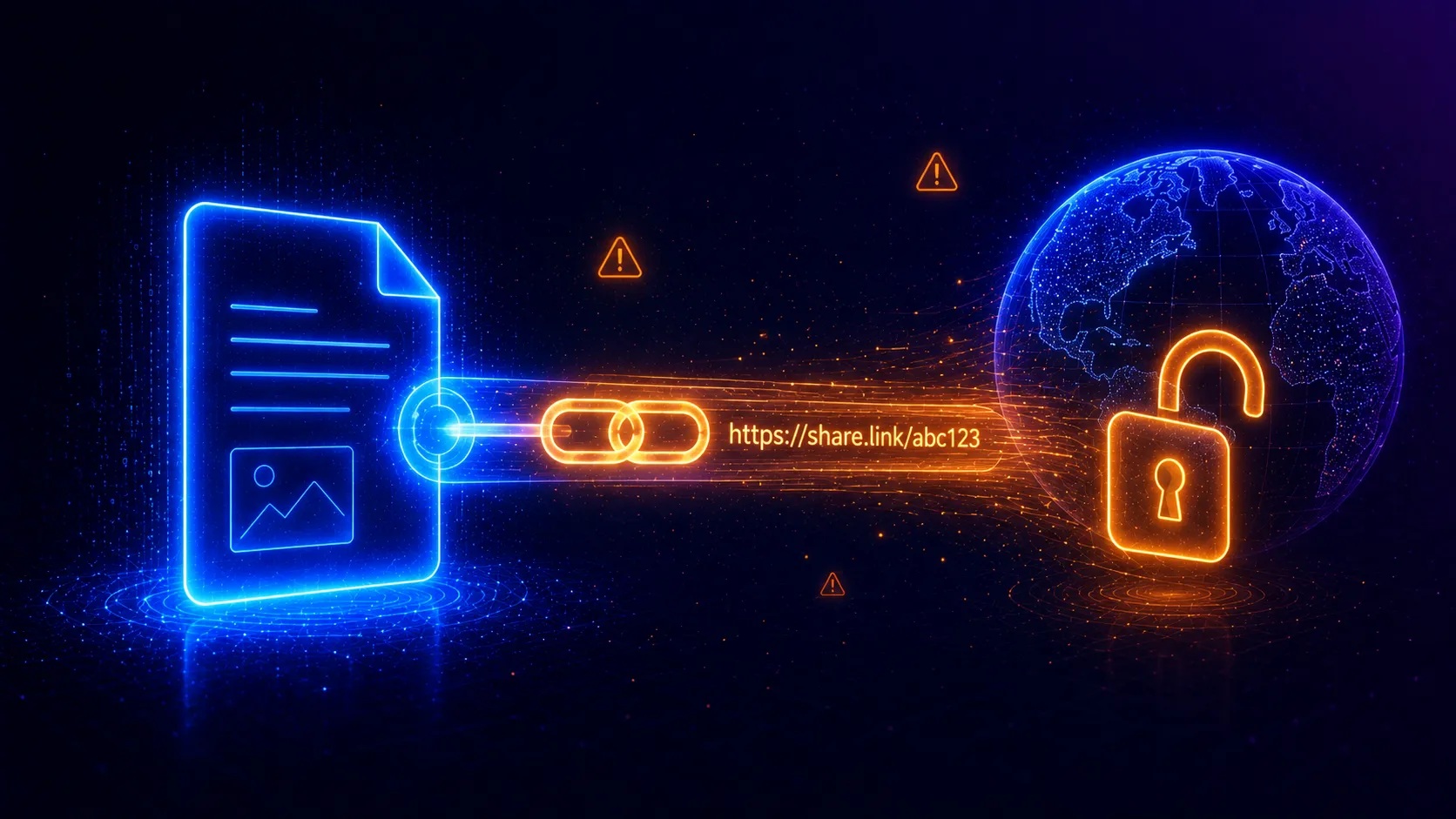
Public links are the most convenient way to share a Salesforce file — and the easiest way to leak one. They hand out access to anyone with the URL, no login required, ignoring every sharing control you’ve configured. Used deliberately they’re fine; used casually they’re a standing data-exposure risk. Here’s how to use them safely.
What a public link actually is
Creating a public link generates a URL that:
- Works for anyone, inside or outside your company.
- Requires no Salesforce login.
- Lets the recipient view and download the file — they can’t collaborate or edit.
- Bypasses the sharing model entirely — org-wide defaults, sharing rules, the lot.
A public link is access by possession. Whoever holds the URL has the file. Treat it like a password.
This is fundamentally different from how a file is normally seen — through record access or a direct share. A public link skips all of that.
The two controls that matter
Salesforce gives you two guardrails when you create a link. Use them.
Expiration date
An expiration date is on by default (commonly set ~90 days out) and you can shorten it. You can disable expiry — and that’s precisely when a link created for a one-off becomes a permanent backdoor that outlives the reason it existed. Keep expiry on for anything sensitive, and set it as short as the use case allows.
Password
You can require a password to open the link. For any file that isn’t genuinely meant for the whole internet, set one — and send the password through a different channel than the link itself, so intercepting one isn’t enough.
Public links are auditable data
Under the hood, a public link is a ContentDistribution record. That’s good news for governance: links aren’t an invisible per-file toggle, they’re queryable rows you can:
- Report on — which files have active links, who created them, when they expire.
- Revoke centrally — delete the ContentDistribution record to kill the link immediately.
SELECT Name, ContentDocumentId, CreatedBy.Name, ExpiryDate,
       PreferencesPasswordRequired, DistributionPublicUrl
FROM ContentDistribution
WHERE PreferencesExpires = false
A query like that — active links that never expire — is a fast way to find your riskiest shares.
A safe-use checklist
- Default to no public link. Prefer a direct share or record attachment where you can.
- Keep expiry on, set short.
- Add a password for anything non-public; share it separately.
- Audit ContentDistribution regularly for non-expiring or stale links.
- Revoke links the moment they’re no longer needed.
Governance you can actually keep up with
The risk with public links isn’t the feature — it’s the ones nobody remembers creating. Pair a recurring ContentDistribution audit with a clear policy, and the convenience stops being a liability. And when you’re checking who can reach a file overall, remember a public link is one of several paths: AgentForceAccess accounts for record access, direct shares and public links when it explains who can see a file and why.
Frequently asked questions
Who can open a Salesforce public file link?
Anyone with the URL. Public links require no Salesforce login and ignore org-wide defaults, sharing rules and every other record-access mechanism. Recipients can view and download the file, but they cannot become collaborators or edit it.
Do public links expire?
By default yes — Salesforce sets an expiration date (commonly 90 days out) when you create a link, and you can shorten it. You can also disable expiry, which is exactly when a forgotten link becomes a long-term exposure, so keep expiry on for anything sensitive.
Can I password-protect a public link?
Yes. You can require a password to open the link, in addition to or instead of an expiration date. For any file that is not genuinely public, set a password and share it through a separate channel from the link.
How do I find and revoke existing public links?
Public links are stored as ContentDistribution records. You can report on them to see which files have active links, who created them and when they expire, and delete the record to revoke access immediately. This is the audit most orgs never run.
See it on your own org
AgentForceAccess explains, in plain English, why any user can see any record or file — across every Salesforce sharing mechanism.
Request early access